The Real Reason Your Stream Keeps Freezing (Hint: It's Probably Not Netflix)

Photo: frustrated person watching buffering screen on smart TV living room, via thumbs.dreamstime.com
Everyone Blames Netflix. Netflix Is Usually Innocent.
It's a familiar scene: you're 40 minutes into a movie, someone's about to reveal the killer, and your screen turns into a blurry slideshow before freezing entirely. Your first instinct is to curse out the streaming service. Completely understandable. Almost always wrong.
Netflix, Disney+, Hulu, and their competitors operate some of the most robust content delivery networks on the planet. They have literally thousands of servers distributed across the US specifically to push video to you fast. When your stream buffers, the problem is almost never sitting on their end — it's somewhere between their servers and your eyeballs.
Let's trace that path and figure out where things are actually breaking down.
Understand What "Buffering" Actually Means
When you hit play on a stream, your device doesn't download the whole file. It pulls a few seconds ahead of what you're watching and stores it temporarily — that's the buffer. As long as your connection delivers data faster than you're consuming it, playback is smooth. The moment that supply chain hiccups, you get the spinning wheel of despair.
So buffering is really just your device saying: "I ran out of video to show you because data stopped arriving fast enough." The question is why data stopped arriving fast enough. And that's where the real detective work starts.
Step One: Test Your Actual Internet Speed (Not What You're Paying For)
Your ISP sells you a plan — let's say 200 Mbps. That's what you're promised. What you actually get at your device, at any given moment, can be dramatically different.
Grab your phone or laptop, open a browser, and run a test at fast.com (Netflix's own speed test tool, which is fitting) or speedtest.net. Do this while standing near your router, and then again from wherever you normally stream.
For context on what you actually need: standard HD streaming uses roughly 5-8 Mbps. 4K HDR content on Netflix requires around 25 Mbps. If you've got four people in the house all streaming or gaming simultaneously, those numbers stack up fast.
If your speed test near the router looks healthy but drops significantly at your couch or bedroom, you've already found a major clue: your Wi-Fi signal is degrading over distance or through walls, and that's your primary suspect.
The Wi-Fi Factor: More Complicated Than It Looks
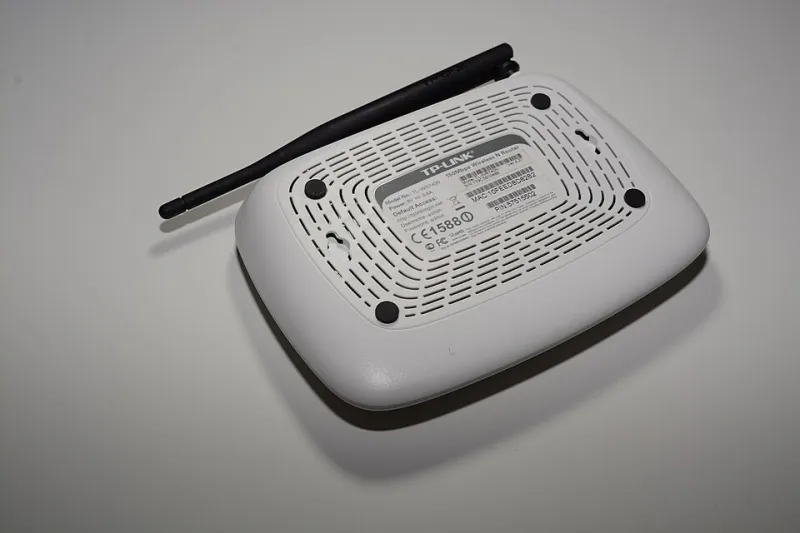
Wi-Fi is radio signal, and radio signal hates obstacles. Thick walls, appliances, neighboring networks on the same channel, even a microwave running in the kitchen — all of these can chew into your signal quality without killing it entirely, which is the worst-case scenario. You'll have "good" signal bars on your phone but inconsistent, choppy throughput that's just bad enough to cause buffering.
A few things worth checking:
Router placement matters enormously. Your router should be out in the open, elevated, and as centrally located as possible relative to where you stream. Stuffing it in a closet or behind the TV cabinet is basically putting it in a signal-blocking box.
2.4 GHz vs. 5 GHz bands. Most modern routers broadcast on both. The 5 GHz band is faster but has shorter range. The 2.4 GHz band travels farther but is congested in most neighborhoods because every router and smart device in a half-mile radius is also using it. If you're close to your router, manually connecting your streaming device to the 5 GHz network can make a noticeable difference.
Wired is still king. If you're streaming on a smart TV or a device like an Apple TV, Roku, or Fire Stick that has an Ethernet port (or supports a USB-to-Ethernet adapter), a physical cable connection will almost always outperform Wi-Fi for stability. It's less convenient, but it eliminates an entire category of problems.
Your ISP Might Be Throttling You — Here's How to Check
This one's a little uncomfortable to talk about, but it's real. Some internet service providers throttle — meaning intentionally slow down — specific types of traffic, including video streaming, especially during peak evening hours. This was a bigger issue before the net neutrality debates of the mid-2010s, but it hasn't gone away entirely.
Here's a quick way to check if throttling is a factor: run your speed test normally, then run it again while connected to a VPN. If your speeds are significantly faster with the VPN on, your ISP is likely shaping your traffic. The VPN hides the nature of your traffic from the ISP, which prevents them from selectively slowing it.
This isn't a permanent fix — VPNs can introduce their own latency — but it's a useful diagnostic. If throttling is confirmed, your real options are complaining to your ISP, switching providers if you have that luxury, or using a VPN consistently for streaming.
When the Problem Is Your Device, Not Your Network
Sometimes the network is fine and the bottleneck is the hardware doing the playback. Older smart TVs with underpowered processors, aging tablets, or phones running low on storage can all struggle to decode high-bitrate video smoothly — especially 4K content with HDR.
A few things to try:
- Close background apps on your streaming device before hitting play. On smart TVs especially, apps running in the background consume processing power and memory.
- Check for app updates. Streaming apps update frequently, and running an outdated version can cause compatibility issues or bugs that trigger buffering.
- Clear the app's cache. On Android-based TVs and Fire Sticks, go to Settings > Applications > find your streaming app > Clear Cache. This forces the app to start fresh and can resolve a lot of weird playback behavior.
- Restart the device completely. Not just sleep mode — a full power cycle. This clears memory leaks and refreshes network connections.
Lowering Quality Settings: The Underrated Fix
If you've worked through the above and still have issues, consider manually lowering the streaming quality in the app's settings. Most services default to "Auto," which sounds smart but can sometimes make poor decisions about your connection. Locking it to 1080p instead of 4K, or even 720p, dramatically reduces bandwidth requirements and can eliminate buffering entirely while you continue troubleshooting.
Yes, it feels like a step backward. But a smooth 1080p picture is vastly more watchable than a 4K stream that pauses every three minutes.
The Quick Checklist Before You Call Anyone
If you want a fast rundown to work through next time your stream tanks:
- Run a speed test at your device — does it match what you're paying for?
- Move closer to your router and retest — is Wi-Fi the issue?
- Restart your router, modem, and streaming device
- Try an Ethernet cable if possible
- Check for app updates and clear the app cache
- Try a different streaming service — if only one app buffers, it might actually be that service
- Test with a VPN to check for ISP throttling
Nine times out of ten, one of these steps exposes the actual problem. And once you know what you're dealing with, the fix is usually a lot simpler than it seemed when you were just staring at a spinning circle wondering who to blame.