Full Bars, Zero Speed: The Dirty Secret Behind Your Home Wi-Fi Signal
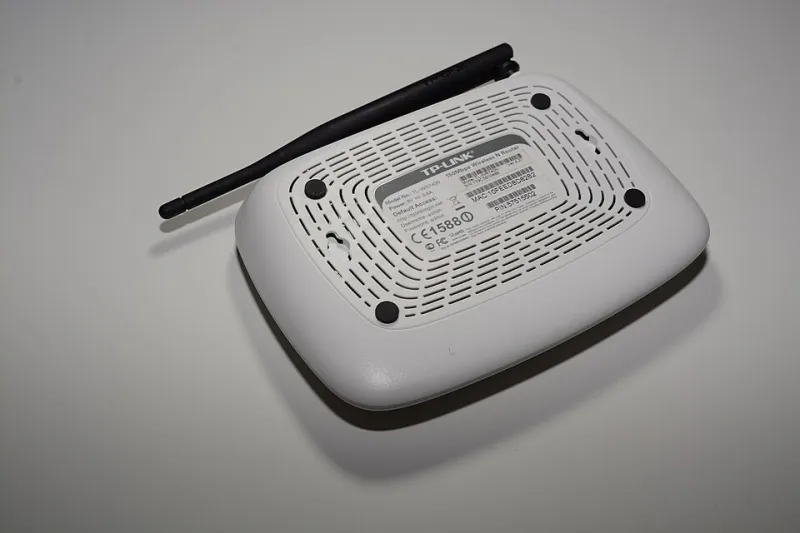
Photo: Hayden Schiff, CC BY 4.0, via Wikimedia Commons
You're sitting six feet from your router. Every device in the house shows a full signal. You go to stream something, load a webpage, jump on a video call — and suddenly it feels like you're back on dial-up. You restart your phone. You restart your laptop. You stare at the router like it owes you money.
Here's the thing: it kind of does.
That signal indicator on your device isn't measuring your internet speed. It's not even close. What it's actually measuring is the radio frequency strength between your device and your router — essentially, how loud the two of them are talking to each other. Whether that conversation is useful is a whole separate question.
Let's break down what's actually going on and, more importantly, how to fix it.
What Those Bars Actually Measure (Hint: Not Speed)
The signal bars on your phone, tablet, or laptop represent something called RSSI — Received Signal Strength Indicator. It's a measurement of the raw radio signal your device is picking up from the router. Think of it like measuring how clearly you can hear someone's voice across a room. Hearing them loudly doesn't mean they're saying anything intelligent.
Your actual internet performance depends on a whole chain of factors that RSSI doesn't touch:
- Bandwidth from your ISP — What your provider is actually delivering to your home
- Router processing power — Budget routers can choke under load
- Network congestion — How many devices are competing for the same signal
- Channel interference — Other networks and devices stomping on your frequency
- Physical obstacles — Walls, floors, appliances, and even fish tanks can degrade signal quality
You can have a crystal-clear signal and still be fighting all of these at the same time.
The Neighbor Problem Nobody Talks About
In most American suburbs and apartment buildings, you're not just competing with your own devices — you're competing with every router within range. Wi-Fi operates on specific radio channels, and if your router and your neighbor's router are both broadcasting on Channel 6 (which is incredibly common, since it's a default on many devices), they're essentially talking over each other constantly.
This is called channel interference, and it's one of the biggest silent killers of home network performance. Your bars stay full because your router is still broadcasting loudly — but the actual data throughput gets mangled in the noise.
Quick fix: Log into your router's admin panel (usually at 192.168.1.1 or 192.168.0.1 in your browser) and look for the wireless channel settings. Try switching to a less congested channel. For 2.4GHz networks, channels 1, 6, and 11 are the only non-overlapping options — pick whichever your neighbors aren't using. For 5GHz, you have a lot more room to breathe.
Not sure which channels are crowded? Download a free app like WiFi Analyzer (Android) or Network Radar (Mac) to see a real-time map of nearby networks and their channels.
The 2.4GHz vs. 5GHz Trap
Most modern routers broadcast on two frequencies: 2.4GHz and 5GHz. If your router has a single network name (SSID) for both, your device is automatically choosing which band to connect to — and it doesn't always choose wisely.
Here's the tradeoff:
- 2.4GHz travels farther and penetrates walls better, but it's slower and more congested
- 5GHz is significantly faster but has a shorter range and struggles with obstacles
If you're sitting near your router and getting slow speeds, there's a decent chance your device is connected to the 2.4GHz band when it should be on 5GHz. The fix is to split your network into two separate SSIDs — something like "HomeNetwork_2.4" and "HomeNetwork_5" — and manually connect your high-priority devices to the faster band.
When the Problem Is Actually Your ISP
Before you spend an afternoon reconfiguring your router, take two minutes to run a speed test directly from a laptop plugged into your router via ethernet cable. Use Fast.com or Speedtest.net.
If the wired speed matches what you're paying for, the issue is in your wireless setup. If the wired speed is also garbage, your ISP is underdelivering — and that's a conversation to have with them, not your router.
Pro tip: Run the test at different times of day. Many ISPs throttle speeds during peak hours (evenings, weekends), and documenting that pattern gives you real leverage when you call to complain.
Congestion Inside Your Own Home
Even without interference from neighbors, your own network can get congested fast. Every smart TV, security camera, gaming console, smart speaker, laptop, phone, and tablet is fighting for bandwidth. The average American household now has 17 connected devices — and most routers weren't designed to handle that gracefully.
If your router supports QoS (Quality of Service) settings, use them. QoS lets you prioritize certain types of traffic — like video calls or streaming — over background stuff like automatic app updates or smart fridge telemetry. Check your router's admin panel for a QoS or "Traffic Priority" section.
Also worth checking: Are any devices running automatic backups or updates in the background? A laptop syncing to the cloud or a gaming console downloading a 50GB update will quietly murder your bandwidth for everyone else on the network.
The Physical Placement Problem
Where you put your router matters more than most people realize. Routers broadcast signal in all directions, so tucking it in a corner, inside a cabinet, or on the floor is essentially throwing away half your coverage.
Best practices for router placement:
- Central location in your home
- Elevated position (shelf height or higher)
- Away from microwaves, cordless phones, and baby monitors (they all operate on 2.4GHz)
- Not inside metal cabinets or behind large appliances
If you have a larger home or thick walls, a mesh network system — like Google Nest WiFi or Eero — might be worth the investment. These systems use multiple nodes to blanket your space in coverage without the dead zones a single router creates.
The Actual Fix Checklist
Here's your quick-hit list to get things back on track:
- Run a wired speed test — Rule out ISP issues first
- Check your channel — Switch to a less congested one
- Split your 2.4GHz and 5GHz bands — Connect faster devices to 5GHz manually
- Enable QoS — Prioritize important traffic
- Reposition your router — Central, elevated, obstacle-free
- Audit your connected devices — Kill background updates and backups during peak hours
- Update your router firmware — Seriously, check. Most people never do this.
Full bars are a starting point, not a guarantee. Now that you know what they actually mean, you've got the tools to stop guessing and start fixing.